Setup your Git on Mac and Linux
In the last tutorial, you learned how to set up Git on Windows. In this tutorial, we will help you set it up on Mac. This may feel very different from the Windows setup, as we use Homebrew and Mac terminal commands to set it up. If you are wondering what Homebrew is, it is a package manager for Mac. Using Linux? Jump to the Linux section, where one command installs Git.
Your install checklist
Install Git on Mac
Step 1: Install Homebrew
There are four ways we can install Git on Mac:
1. Install via Homebrew
2. Xcode approach
xcode-select --install3. Binary installer
4. Building from source
In this post, we will use Homebrew to install Git. Go to the Homebrew website and copy the install command. Once copied, go to the Mac Terminal and paste the command. Mac will ask you to enter your system password; type it and press Enter. It may take 2 to 3 minutes to install Homebrew.
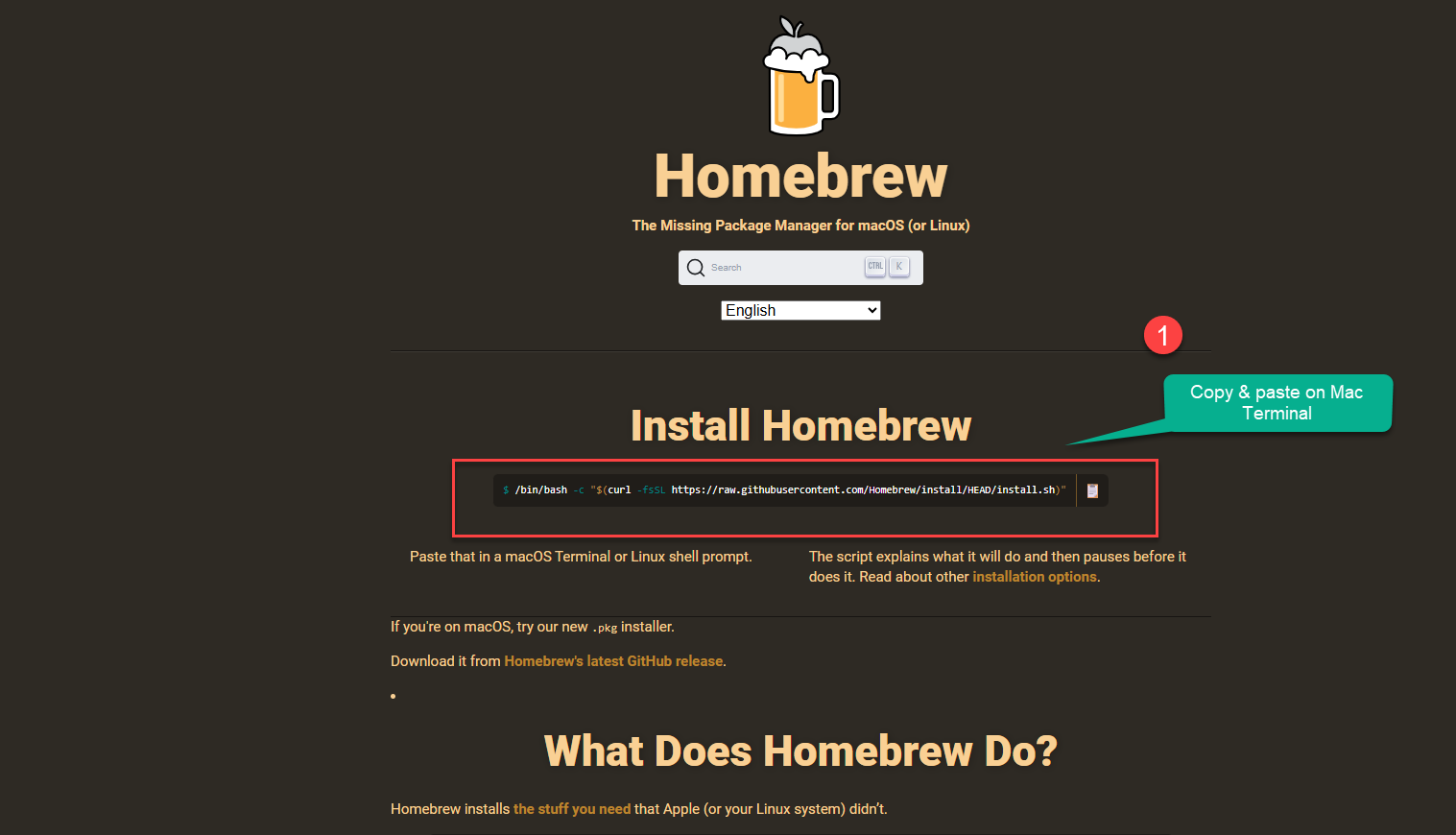
- Marker 1: Copy & paste on Mac Terminal
/bin/bash -c "$(curl -fsSL https://raw.githubusercontent.com/Homebrew/install/HEAD/install.sh)"
Step 2: Run the commands in the Mac Terminal
When Homebrew finishes, the terminal shows a Next steps section. Copy and paste the commands it shows, one by one, and press Enter to run each one. Once all are done, enter brew help to check that Homebrew has been installed successfully.
==> Next steps:- Run these commands in your terminal to add Homebrew to your PATH: echo >> ~/.zprofile echo 'eval "$(/opt/homebrew/bin/brew shellenv)"' >> ~/.zprofile eval "$(/opt/homebrew/bin/brew shellenv)"- Run brew help to get started
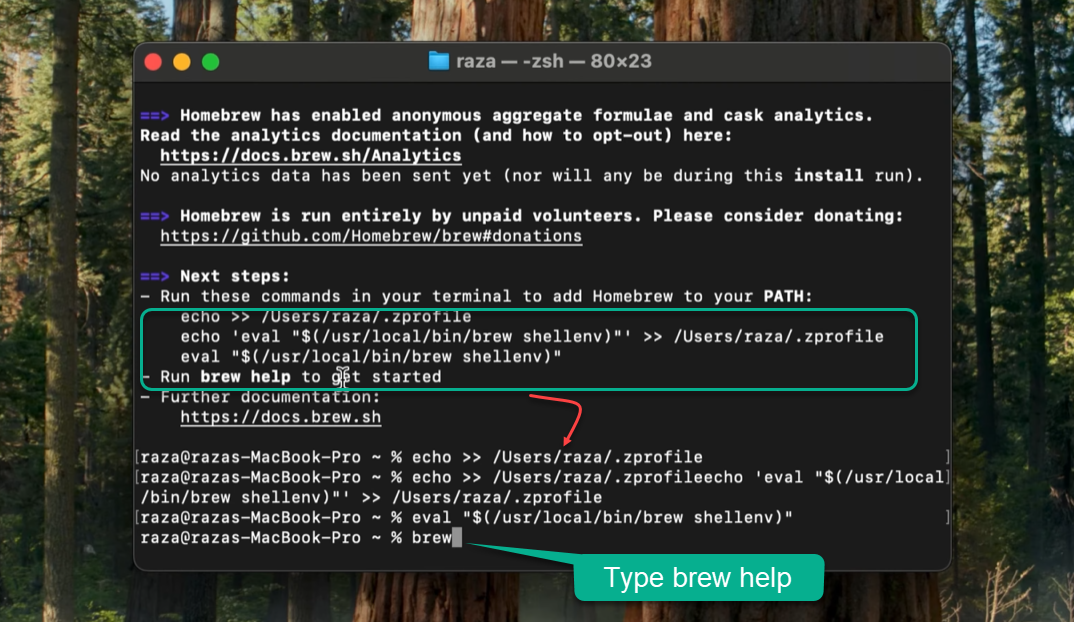
- Run the PATH commands
- Type brew help
Once installed, use the command below to check the version of Homebrew in the terminal.
brew -v
Step 3: Install Git via Homebrew
Now you can install Git on your Mac by entering the command below in the terminal.
brew install git
In future, if you want to update the version of Git installed on your Mac, run this command in the terminal.
brew upgrade git
Check that Git is installed
Once the setup is complete, open Visual Studio Code and run the command below in its terminal to check whether Git has been installed.
git --version
brew -v shows the Homebrew version. git --version shows the Git version, which is what confirms Git is installed.
Install Git on Linux
NewLinux step 1: Install Git with your package manager
On Linux, Git is in your distribution’s package manager, so one command installs it. Pick your distribution, copy the command and run it in your terminal. Most commands start with sudo because installing software needs admin rights; enter your password when asked.
- Ubuntu / Debian
- Fedora
- Arch Linux
- openSUSE
- Alpine
- Gentoo
sudo apt-get install git
sudo dnf install git
sudo pacman -S git
sudo zypper install git
apk add git
sudo emerge --ask --verbose dev-vcs/git
Want the newest Git on Ubuntu? Use the Git PPA
The Git maintainers publish the latest stable version for Ubuntu in a PPA.
sudo add-apt-repository ppa:git-core/ppa
sudo apt update
sudo apt install git
Linux step 2: Check that Git works
Run this in your terminal. If it prints a Git version number, Git is installed and ready.
git --version
Before your first commit
Git saves your name and email with every commit, and it will not let you commit until you set them. Do this once, on Mac or Linux (and Windows too). Use the same email as your GitHub account.
git config --global user.name "Your Name"
git config --global user.email "you@example.com"
Check what you saved:
git config --list
Conclusion
In conclusion, I hope you enjoyed reading this article on “Installing Git on Mac and Linux”. In the next post, we will discuss Git commands and their in-depth usage on GitHub.
Signing off, Sanjay Viswanathan.
UP NEXT · LESSON 5Git Commands Cheatsheet
Your vote helps us improve our docs.
All our docs are open source. Found a typo, want to add detail or have a better explanation? Anyone can contribute.
Comments
Powered by GitHub Discussions